


CAMCEADHUB is CamCEAD's IRIS-hosted cloud analysis platform for CASU, providing on-demand compute resources, storage and interactive environments for large-scale scientific data processing.
Visit CAMCEADHUB to sign in or register
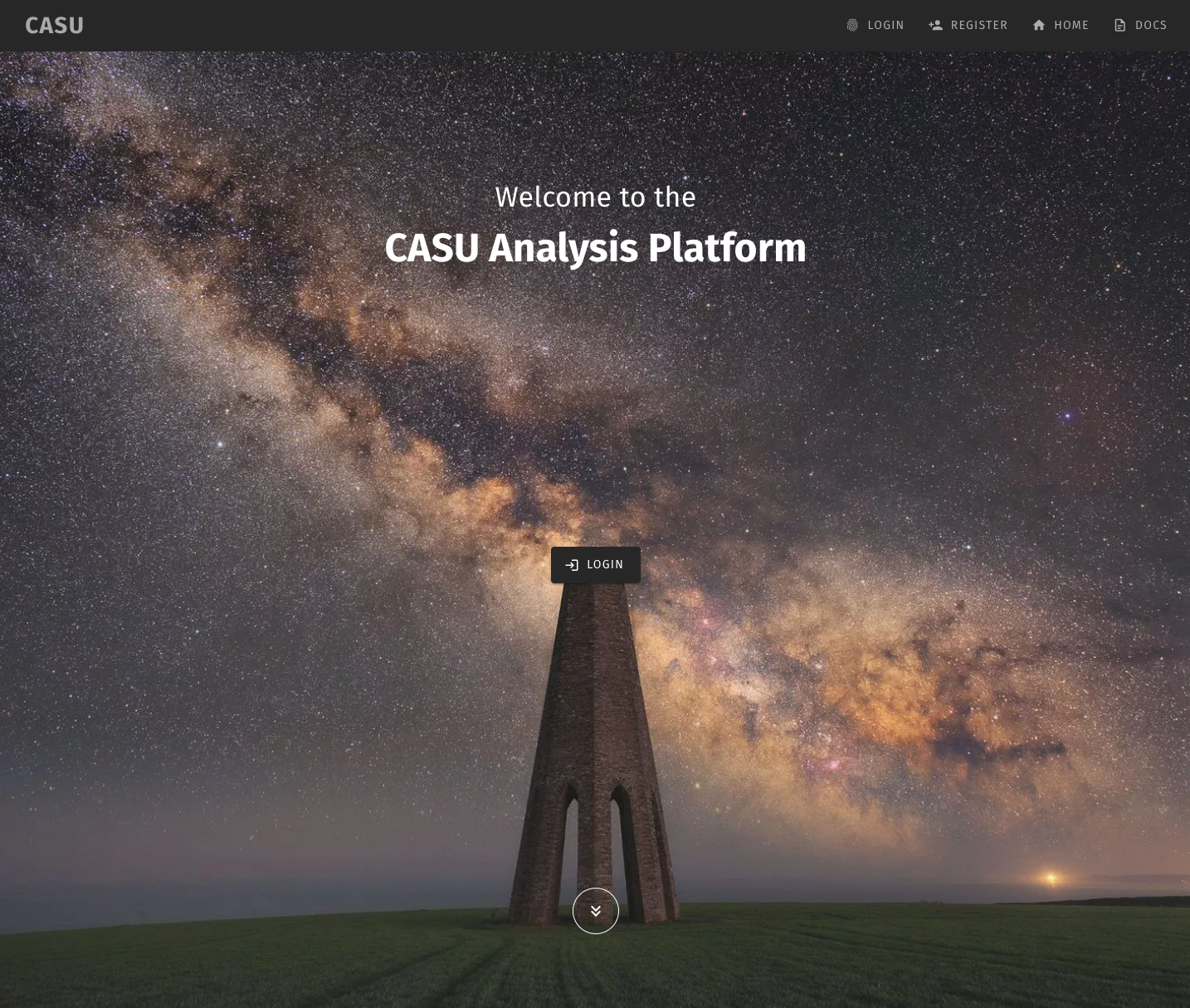
CAMCEADHUB (CASU-IRIS) is CamCEAD's cloud analysis platform for CASU users. It gives researchers computing power and access to their data on demand, without having to run any infrastructure themselves.
Much of today's astronomy no longer fits on a laptop or a desktop workstation. Data from surveys such as Gaia, 4MOST, WEAVE and MOONS runs to terabytes, and the software used to process it (astropy, photutils, TensorFlow, GDL and others) needs proper compute behind it. CAMCEADHUB lets researchers skip the setup: you request a server, get a configured astronomy environment within seconds and start working. There is no cluster to administer, no dependencies to sort out and no wait for a machine to be provisioned.
Why researchers use it
- Every environment comes with the scientific Python stack, astronomy tools and remote development tools already installed, so there is nothing to build or maintain.
- You can pick a small server for interactive work or a large GPU server for training a model or reducing a night's data. The login and storage stay the same whichever you choose.
- You can work in JupyterLab, RStudio or your own local VS Code connected through a remote tunnel, so there is no need to learn a new tool.
- Built-in file sharing makes it quick to pass a dataset to a colleague or give a project team access to shared results.
- The platform runs on IRIS, STFC's e-Infrastructure for Research and Innovation, which gives CASU researchers access to well-maintained computing at national-facility scale.
What CAMCEADHUB provides
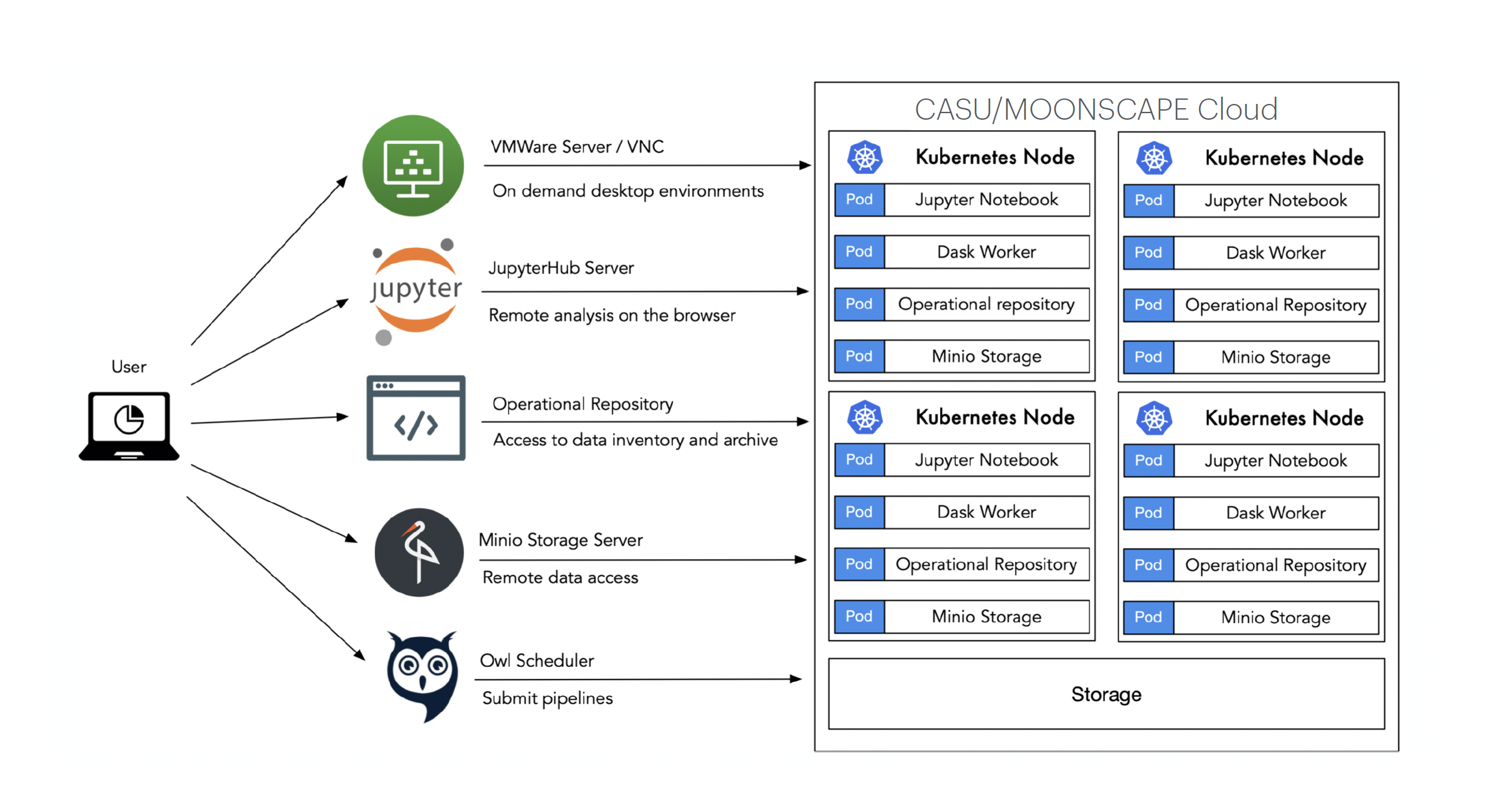
CAMCEADHUB is built on cloud principles. Scientists get a self-service dashboard where they can launch and manage their own compute environments, run data-processing pipelines and keep track of jobs, all backed by dedicated storage and compute.
A ready-made astronomy environment
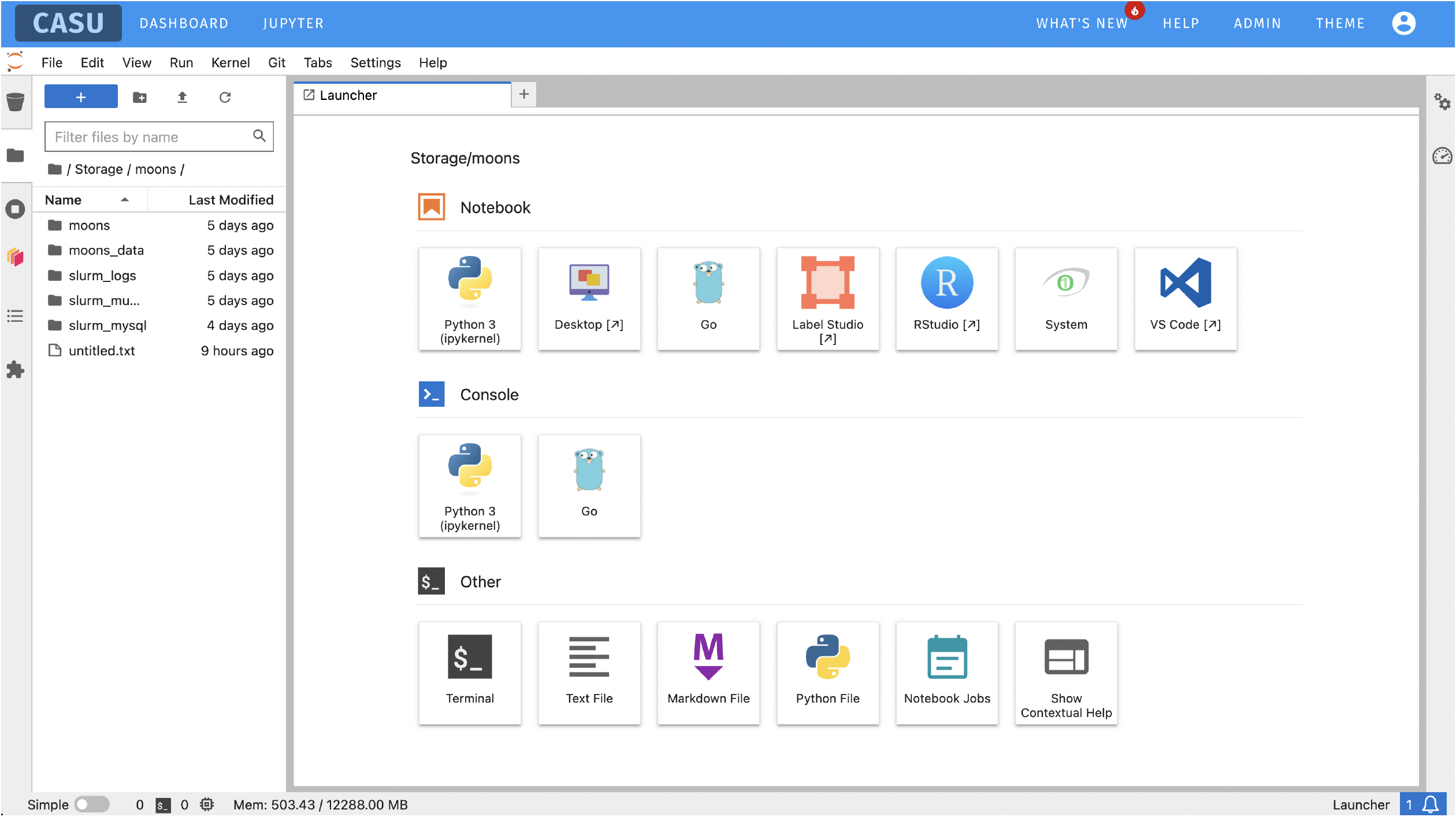
Each JupyterLab session starts with a working astronomy software stack already installed and configured, so you can begin as soon as you log in:
- Scientific Python: astropy, photutils, numpy, scipy, pandas, matplotlib and the wider astronomy Python ecosystem, installed with compatible versions.
- SAOImage DS9 for inspecting FITS images, and Aladin for sky visualisation.
- R and RStudio for statistical analysis.
- TensorFlow and CUDA on the GPU server tiers, for machine learning and deep learning.
- Remote desktop sessions (noVNC in the browser, or full TurboVNC) for applications that need a proper desktop.
- Visual Studio Code, either in the browser or linked to your own local installation through a secure Remote Tunnel, so you can edit and debug as you normally would while the code runs on CAMCEADHUB.
- Git integration in the JupyterLab interface, for keeping analysis code and notebooks under version control.
Key features
- Interactive environments: JupyterLab notebooks, RStudio, Visual Studio Code and full remote desktop sessions, launched on request.
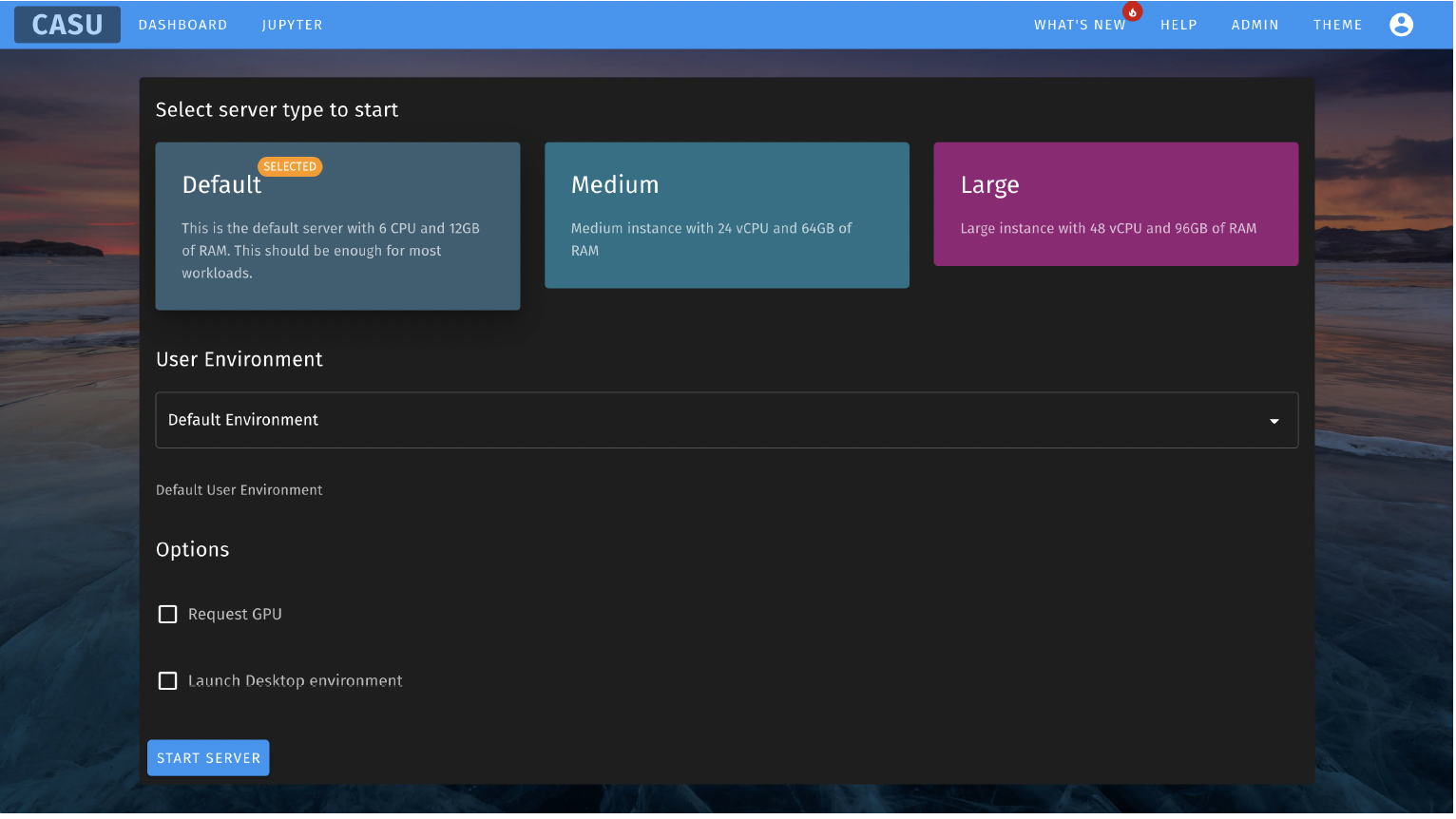
- Server sizes: Default, Medium, Large or XLarge, with optional GPU acceleration. The larger sizes may be limited to particular projects, depending on demand.
- Pipelines and batch jobs: long-running data-processing jobs can be submitted and monitored from the dashboard.
- Storage and sharing: every account has its own private S3-compatible storage, with a web interface for browsing, uploading and sharing files.
- Security: all accounts use two-factor authentication, and CamCEAD members can sign in with their University of Cambridge Raven account.
Hosted on IRIS
Unlike CamCEAD's other cloud platforms, CAMCEADHUB does not run on CamCEAD's own hardware. It runs on IRIS, STFC's e-Infrastructure for Research and Innovation. For the 2026 allocation the platform has 1,980 VCPUs, dedicated GPUs, several terabytes of RAM and multiple petabytes of storage, spread across a Kubernetes cluster of master and compute nodes. In practice this means a server request is usually answered within seconds instead of waiting behind other people's jobs.
Registering and signing in
Access to CAMCEADHUB is by registration and administrator approval.
To register, click Register on the CAMCEADHUB front page and enter your name, email address, username and password. You will receive an email with an activation link. After you click it, an administrator reviews the account before login is enabled, so there may be a short wait before you can sign in for the first time.
To sign in, enter your username and password and then complete the second authentication step, which is switched on for every account. You can generate a code with an authenticator app such as Google Authenticator or Authy, or ask for a one-time code by email if you don't have one to hand.
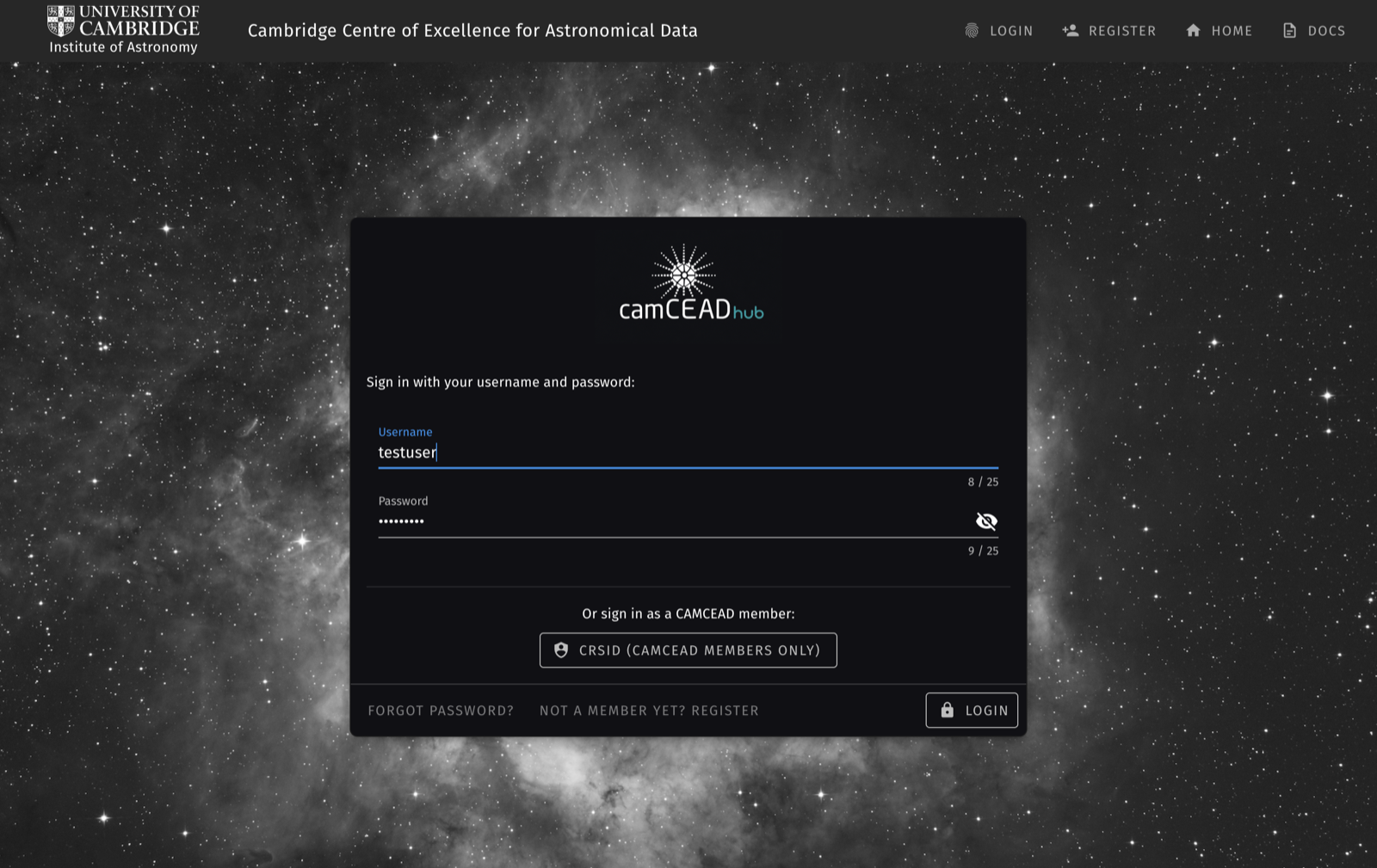
Once you are logged in, the dashboard shows your account details, storage use, running Jupyter servers and job status, with links to the rest of the platform.
Signing in as a CamCEAD member (CRSid / Raven)
CamCEAD members can also sign in with their University of Cambridge Raven account instead of a separate CAMCEADHUB password. On the sign-in page, click CRSid (CamCEAD members only) and log in with Raven as usual. You are then signed straight in, with no separate password or two-factor step, because Raven already handles that.
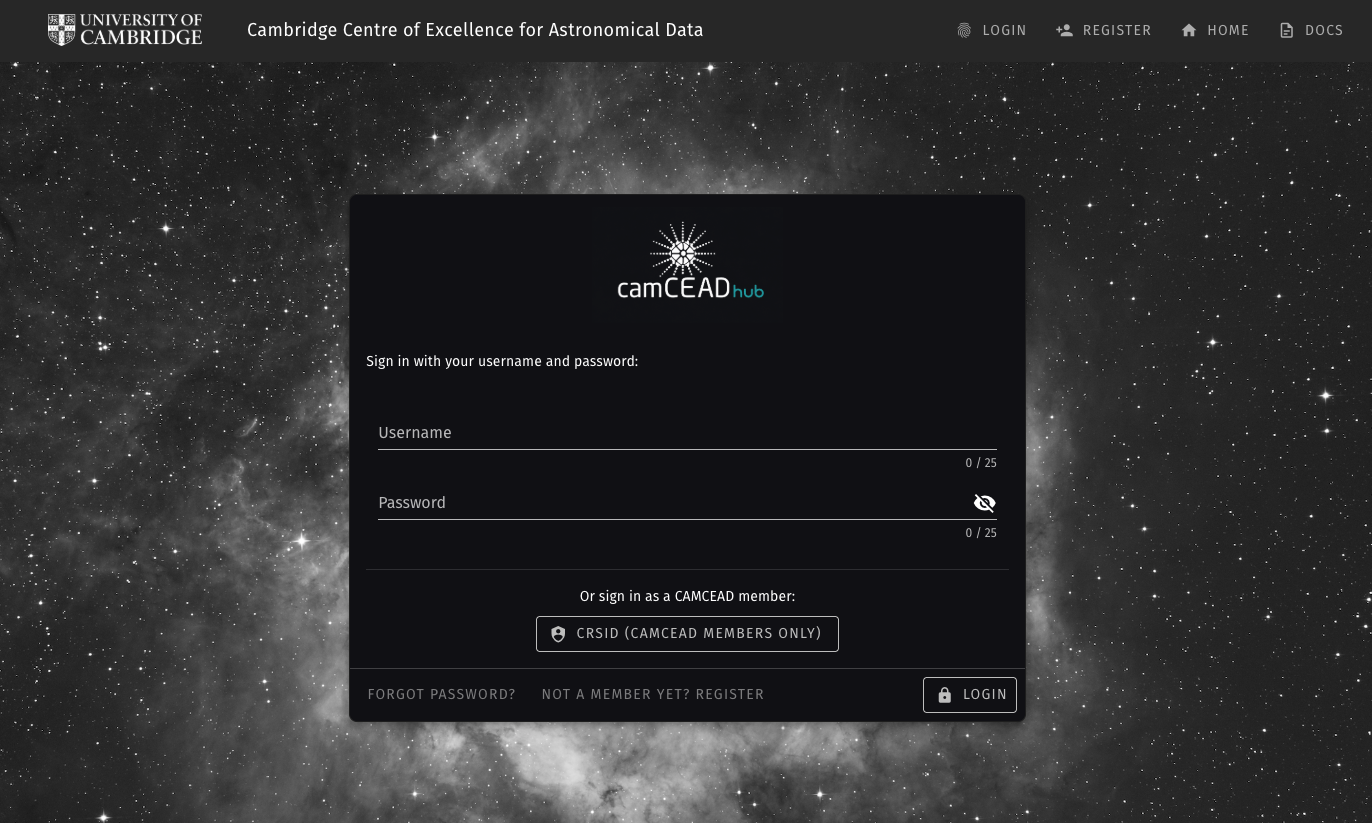
You still need a registered CAMCEADHUB account first, as Raven login does not create one for you. You can add your CRSid when you register or later on your Profile page. Your CRSid and CAMCEADHUB username do not have to match. For example, someone could register as jsmith and sign in through Raven as js1234, because the platform finds your account by CRSid rather than by username.
Data storage and file sharing
Every CAMCEADHUB account includes a private S3-compatible storage bucket. It is persistent, has plenty of space and stays the same whichever server you run. There are three ways to use it:
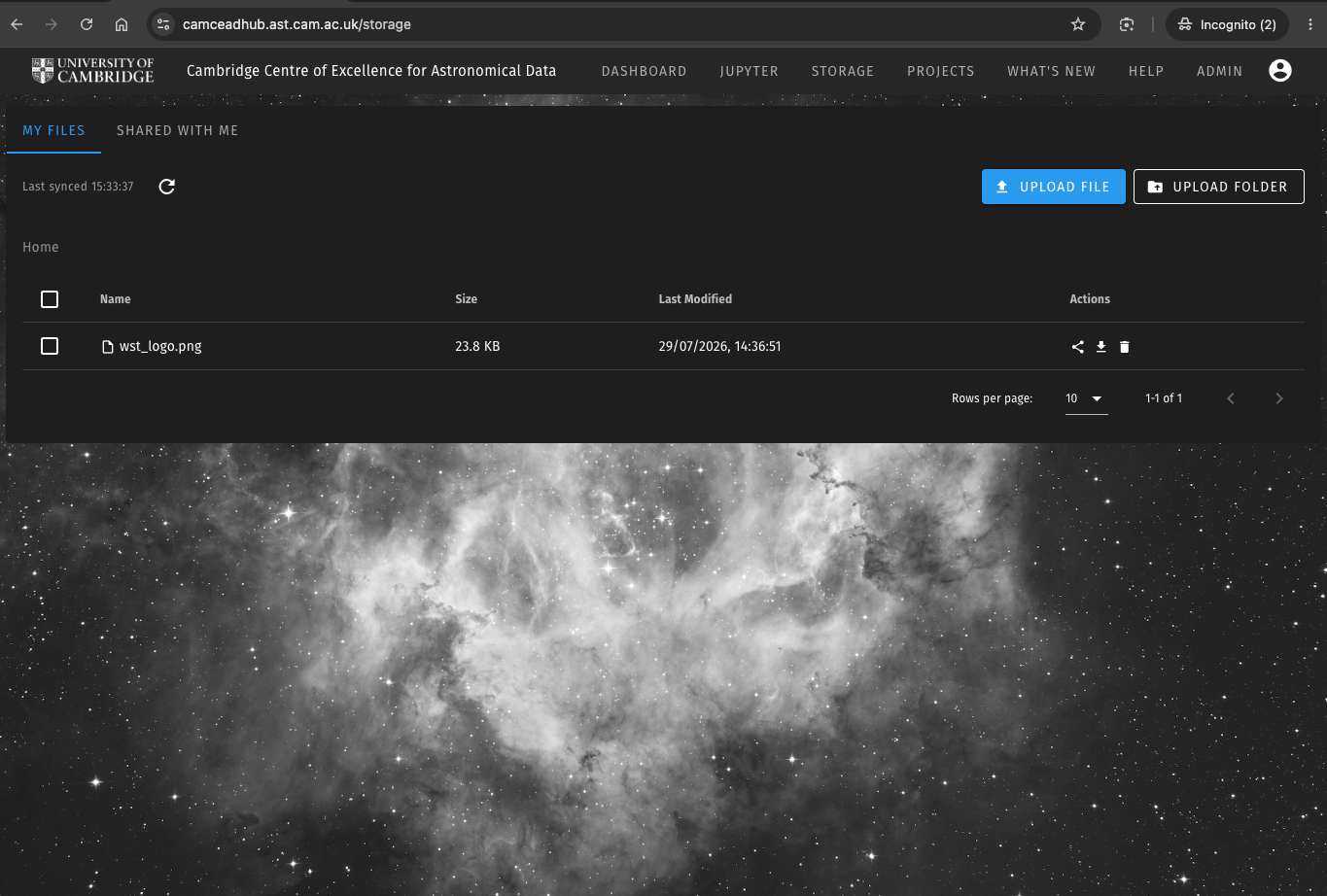
- The Storage page in the dashboard, where you can browse, upload single files or whole folders, download and delete. Uploads can be cancelled part-way through, and you can select several files to delete at once.
- From your own computer, using the command-line client mc (the MinIO client) or a graphical S3 client such as CyberDuck, MountainDuck, Transmit or WinSCP, with the access keys shown on your Profile page. This is the easiest way to move a dataset onto the platform before you start, or to copy results back to your own machine afterwards.
- From inside a running Jupyter server, where command-line access is already set up. Every session has mc and boto3 (Python) configured for your bucket, so a notebook can read and write your storage directly.
Sharing files
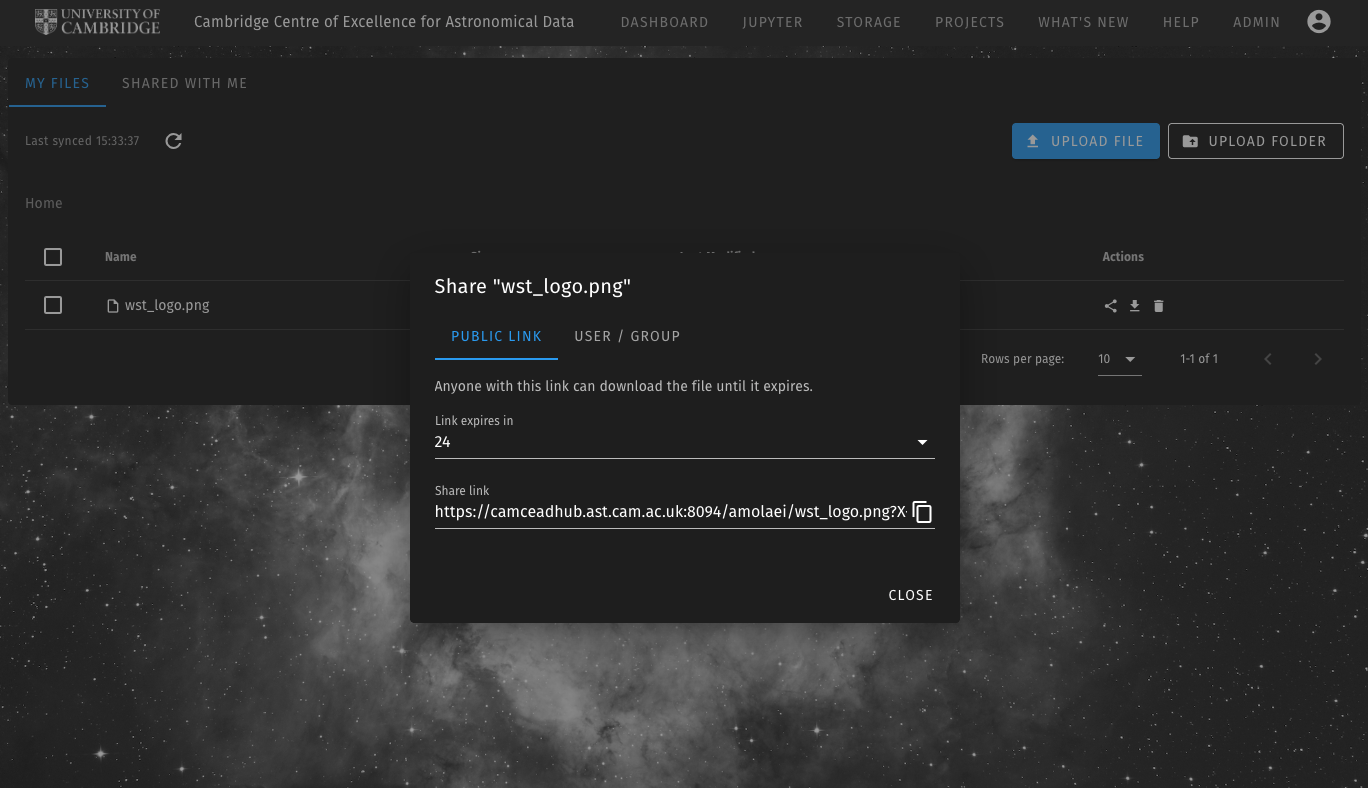
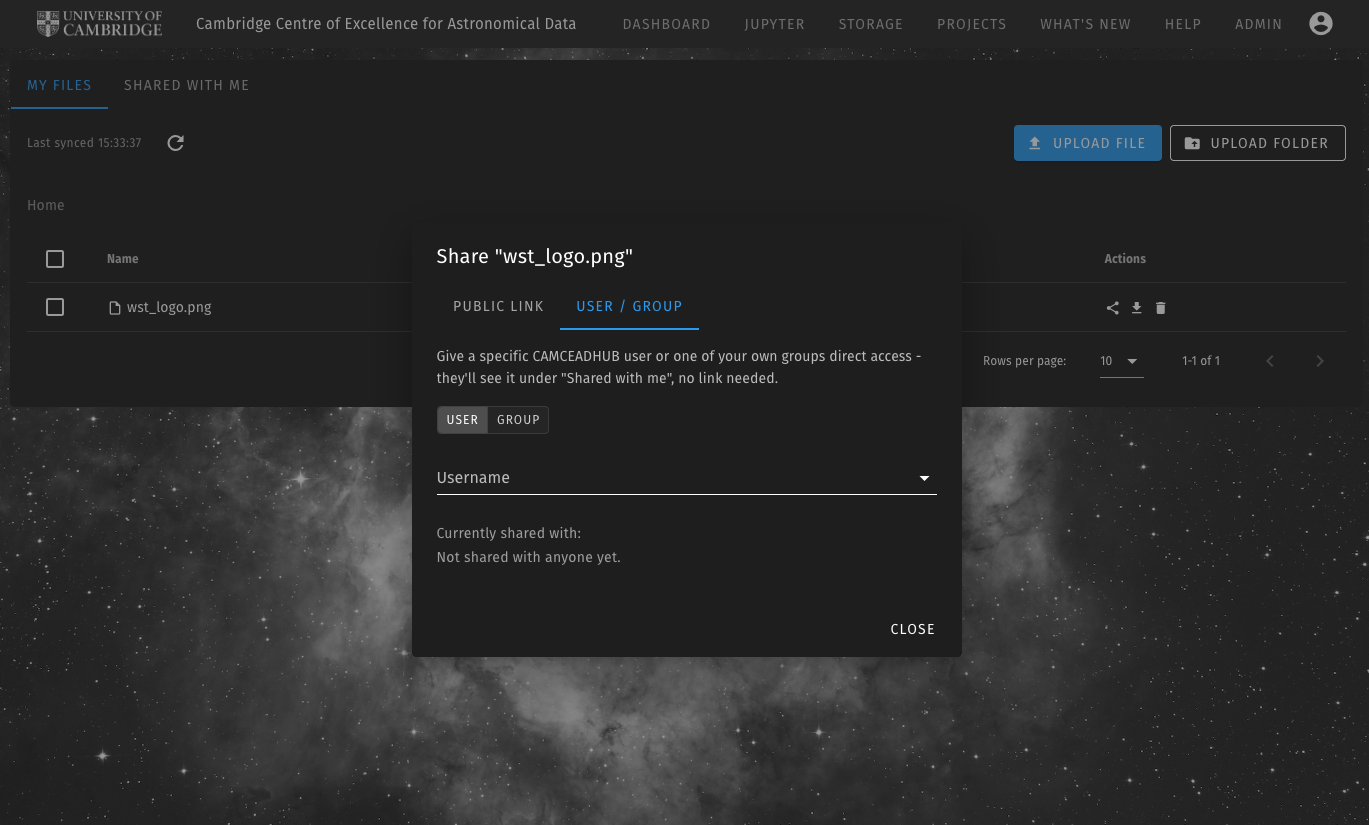
You can share files and folders from the Storage page in two ways:
- A public link: a temporary download link, valid for 1 hour, 1 day or 7 days, that anyone can use without a CAMCEADHUB account. This is useful for sending a plot, a results file or a dataset to an external collaborator or a journal referee.
- Direct sharing: you give a specific CAMCEADHUB user, or one of your project groups, access to a file or folder. It then appears in their "Shared with me" tab without any link, and you can withdraw access at any time. A whole project team can be given access to a results folder in one step.
Members of some projects, such as WEAVE and MOONS, also see their project's shared network storage inside their Jupyter sessions next to their personal storage, so project datasets are available as soon as a session starts.
Related Links
CamCEAD Collaborators

Research Associate
Professional Services Staff

Assistant Research Professor

Assistant Research Professor

Research Professor (Director of CamCEAD)
